
Desktop
Install from the browser for an app window and a taskbar or Dock icon. No separate download is needed.
Hafrix on the desktop
Install Hafrix from Chrome or Edge on Windows and macOS. The console opens in its own window with a taskbar or Dock icon, using the same account and workspace as the browser.
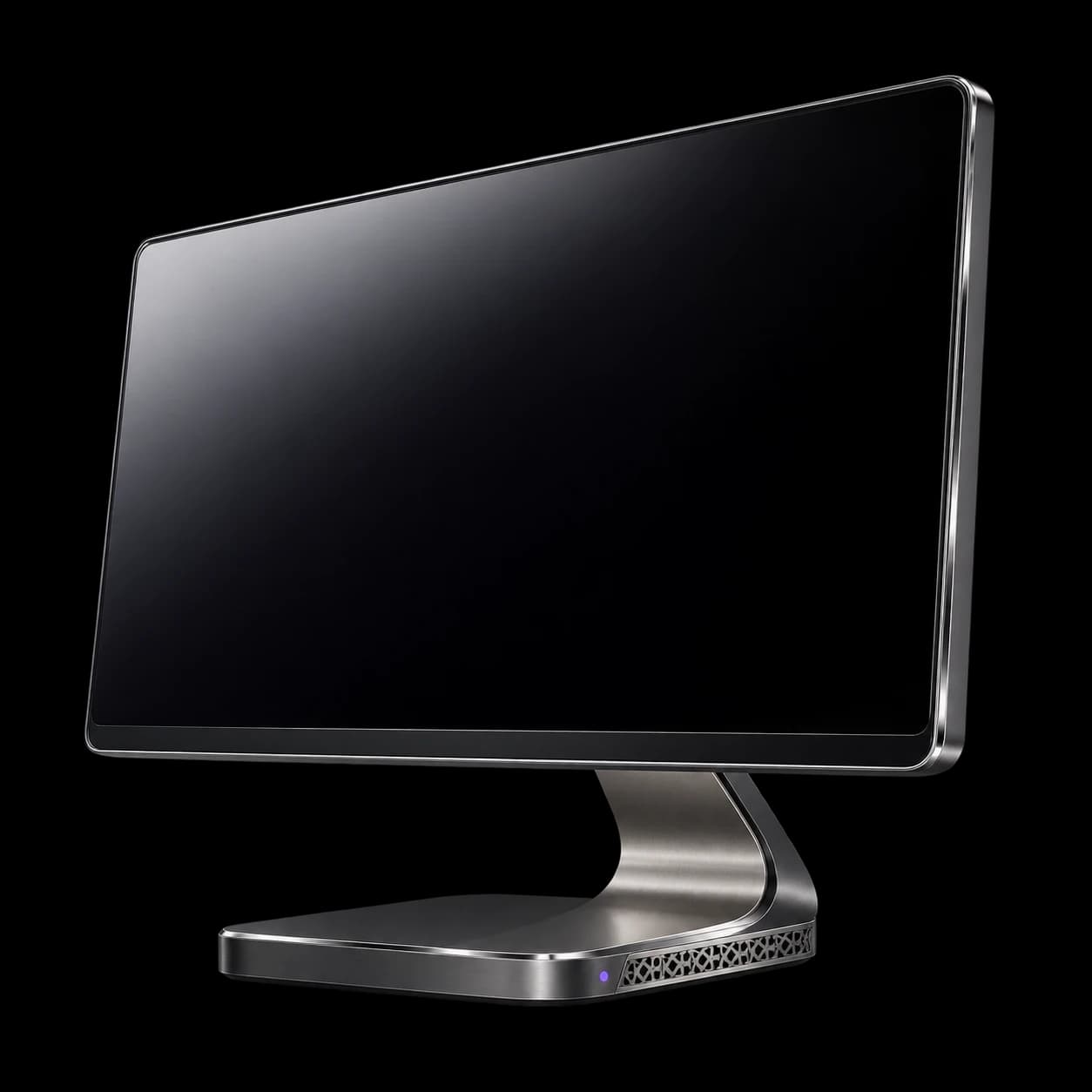
Desktop · Mobile · Browser
Use the office console at your desk and the mobile interface for work in the field.
Install from the browser for an app window and a taskbar or Dock icon. No separate download is needed.
Carry field tickets, scanning, verification and handover onto the phone, with a visible queue for prepared offline work.
Open dash.hafrix.com in a current browser. The installed console opens the same live workspace.
Chrome & Edge
The same browser-install flow is available in Chrome and Edge on Windows and macOS when the browser offers installation.
Open dash.hafrix.com in Chrome or Microsoft Edge and sign in to your workspace.
Use Install Hafrix in the profile menu when offered, or the install icon in the browser address bar.
Confirm installation. Pin Hafrix to the Windows taskbar or keep it in the macOS Dock.
A shared installation
The desktop app opens the live Hafrix workspace. Releases reach it on the next launch or refresh without a separate installer.
In Safari 17 or later on macOS Sonoma, open the signed-in console, choose File → Add to Dock and confirm the name.
IT teams can distribute the installed web app through the browser’s managed installation policy. Users still sign in with their own Hafrix account.
The office console needs a connection. Prepared offline field work belongs to the mobile interface.
Choose your setup
Choose your operating system, or use the deployment notes for a managed team.
Windows · Chrome or Edge
Install Hafrix appears in the profile menu only in a browser that offers installation and only while the console is open in a tab. The same steps work in Chrome and Edge on macOS.
Open your workspacemacOS · Chrome, Edge or Safari
In Chrome or Edge, follow the Windows steps: the installed console appears in Launchpad and can be kept in the Dock. In Safari 17 or later on macOS Sonoma:
For IT administrators
Chrome and Edge install the console for every managed user with the WebAppInstallForceList policy. The same entry works for both browsers:
[
  {
    "url": "https://dash.hafrix.com/",
    "default_launch_container": "window",
    "create_desktop_shortcut": true
  }
]
Microsoft Intune: in a Settings catalog profile, add Configure list of force-installed Web Apps under Microsoft Edge or Google Chrome and paste the entry above.
Group Policy: in Computer Configuration, Administrative Templates, Microsoft Edge or Google Chrome, Web App settings, enable Configure list of force-installed Web Apps with the same entry.
macOS fleets: deliver WebAppInstallForceList in a configuration profile for com.microsoft.Edge or com.google.Chrome. Users sign in with their own Hafrix account after the app appears.
Updates
The desktop app opens the live Hafrix workspace, so every release reaches it on the next launch or refresh. There is nothing to reinstall and no version to manage.
The office console needs a connection. Offline work belongs to the mobile field app.
No. It is the Hafrix web console installed into its own window, with the same workspace and account as the browser.
The menu item appears only when the browser offers installation and the console is open in a browser tab. You may already have installed it, or the current browser may use a different installation command.
The office console needs a connection. The mobile field interface supports prepared work and shows its pending synchronization queue.
Open Hafrix in the browser and follow the install steps when you are ready.
Open Hafrix